Once you have your Vista PC up and running and have the programs you want installed, it might be a wise idea to create a backup of your system's drive.
Sure, I know what you are thinking, "Backups? They're not cool. They're not sexy." Well, you would be absolutely correct about that but a good backup can really save your tail in a pinch. Fortunately, Micorsoft Vista includes a snappy little program called wbadmin that can do this task for you and probably do it much faster than you would expect.
Wbadmin is a backup command line tool that comes installed with Vista. It has a pretty good compression ratio (I backed up just the OS and an install of Office 2007 which clocked in at around 11GB to a backup file that was about 6GB). Most amazingly, at least to me, was that my 1.7GHz machine with 1GB memory backed up the entire C: drive in about 7 minutes.
Here's how it works.
First, you have to be logged in as an account with administrative privilidges. Additionally, the destination of the backup has to be formatted with NTFS.
Second, ensure that the destination location is not on the same partition as the system (C:) drive and the destination is at least 75% of the used size of the system drive. More is obviously always better.
Third, open a command prompt from the Run line and type the following:
WBADMIN START BACKUP -backupTarget:f: -include:c: -quiet
In this example, I am backing up the C: drive and placing that backup on the F: drive. This will happen without further user interaction with the -quiet switch.
If you would prefer to back up specific folders, you would simply type in the folders seperated by a comma, like this:
-include:c:\temp,d:\mountpoint
The backup file will be created and future backups of the same drive will only back up the changes since the last backup (delta) which will make it run much faster. Additionally, the backup file is saved as a .VHD file, which is Microsofts Virtual Hard Disk file format and theoretically could be mounted as a virtual PC using Microsoft Virtual PC.
In conclusion, this is a command line tool that everyone should use. Those who consider themselves as experienced with computers know to do this, though I suspect rarely actually do. PC users who are unfamiliar with computers definitely should use this tool. If your hard drive fails, do you really want to pay Geek Squad or the neighbor kid $100 to get you running again when running this one time can get you back up and running in minutes for free? I know I don't.


Showing posts with label Microsoft Vista. Show all posts
Showing posts with label Microsoft Vista. Show all posts
Connecting to a Secured Wireless Network
So, you want to manually connect to a secured wireless network, huh? Good luck. This task, while relatively easy if you have done it in Windows XP, is a royal pain in the you-know-what in Vista. Fortunately, I have done the hard work for you and have the steps to make this happen.
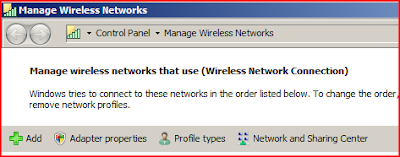
 4. Input the secured wireless network name, the security type (WEP, WPA, etc). Type in the Security Key if it exists and check the check boxes for both Start this connection Automatically and Connect even if the network is not broadcasting. Select Next.
We are assuming you are right-clicking on the wireless network icon in the system tray and selecting Connect to a Network and not seeing the secured wireless network you would like to connect to. We are also assuming that you are in range of that network, of course.
1. Right-click on the Network icon on the desktop and select Properties. The Network and Sharing Center will be displayed (you can also get here through the Control Panel).
2. Under Tasks in the right column, select Manage Wireless Networks. Select Add.
3. Select Manually create a network profile.
4. Input the secured wireless network name, the security type (WEP, WPA, etc). Type in the Security Key if it exists and check the check boxes for both Start this connection Automatically and Connect even if the network is not broadcasting. Select Next. 5. If your wireless network requires a Security type setting other than open, such as Shared, WPA2, etc then select Change Connection Settings. Select the Security tab and change the Security type as appropriate. You will probably have to re-input the Network security key again. Select OK.
6. You will be back to the Manually connect to a wireless network screen. Select Connect to... and you should now be connected.
After completing these steps you find that you are connected to the network but are unable to access the Internet, disconnect from the wireless connection and reconnect. That should fix it.
Creating Custom Search Providers in IE7
There is a neat little feature in Internet Explorer 7 called customized searching. If you select the drop down menu next to the magnifying glass beside the search field, you will see that you can select whichever search engine you want to get your results from.
If you really want to have some great options, select Find More Providers. On this page, you can select additional search providers to include places like eBay, WikiPedia, and even Wal Mart.
But the best part is that you can create your own providers from this page. All you do is go to a page that has search features you want and do a random search. Then, If URL address of the search result page includes your search term(s), you simply copy the whole string and paste it into Step 3 of the Create Your Own on the right side of the Find More Providers page.
Then, find the original search term in the URL string and replace it with the word TEST, all in caps. Finally, in Step 4, give the search a name and select Install. An Add Search Provider window will pop up and just select Add Provider.
When you want to search a particular site, such as eBay, simply type in your search term in the search field of IE7 and select the drop down menu to select eBay. The resulting results will come directly from eBay's web page.
I have already created several custom searches you can use for yourself that are not offered in the topic search options of Find More Providers. Use and enjoy.
FedEx Tracking
https://www.fedex.com/insight/findit/nrp.jsp?tracknumbers=TEST&language=en&clienttype=ivother&opco=FDEG
CDW
http://www.cdw.com/shop/search/results.aspx?key=TEST&sr=1&platform=all&x=16&y=9
Download.com
http://www.download.com/3120-20_4-0.html?tg=dl-20&qt=TEST&tag=srch
Digg
http://digg.com/search?section=news&s=TEST
IMDB (Internet Movie Database)
http://www.imdb.com/find?s=all&q=TEST
YouTube
http://www.youtube.com/results?search_query=TEST
Anagram Searches
http://wordsmith.org/anagram/anagram.cgi?anagram=TEST
USPS Package Tracking
http://trkcnfrm1.smi.usps.com/PTSInternetWeb/InterLabelInquiry.do?origTrackNum=TEST
If you really want to have some great options, select Find More Providers. On this page, you can select additional search providers to include places like eBay, WikiPedia, and even Wal Mart.
But the best part is that you can create your own providers from this page. All you do is go to a page that has search features you want and do a random search. Then, If URL address of the search result page includes your search term(s), you simply copy the whole string and paste it into Step 3 of the Create Your Own on the right side of the Find More Providers page.
Then, find the original search term in the URL string and replace it with the word TEST, all in caps. Finally, in Step 4, give the search a name and select Install. An Add Search Provider window will pop up and just select Add Provider.
When you want to search a particular site, such as eBay, simply type in your search term in the search field of IE7 and select the drop down menu to select eBay. The resulting results will come directly from eBay's web page.
I have already created several custom searches you can use for yourself that are not offered in the topic search options of Find More Providers. Use and enjoy.
FedEx Tracking
https://www.fedex.com/insight/findit/nrp.jsp?tracknumbers=TEST&language=en&clienttype=ivother&opco=FDEG
CDW
http://www.cdw.com/shop/search/results.aspx?key=TEST&sr=1&platform=all&x=16&y=9
Download.com
http://www.download.com/3120-20_4-0.html?tg=dl-20&qt=TEST&tag=srch
Digg
http://digg.com/search?section=news&s=TEST
IMDB (Internet Movie Database)
http://www.imdb.com/find?s=all&q=TEST
YouTube
http://www.youtube.com/results?search_query=TEST
Anagram Searches
http://wordsmith.org/anagram/anagram.cgi?anagram=TEST
USPS Package Tracking
http://trkcnfrm1.smi.usps.com/PTSInternetWeb/InterLabelInquiry.do?origTrackNum=TEST
8 Steps to Ease Your Transition to Vista
Windows Vista is a beast. No doubt about it. It's very large. A complete install fills up 6-8 GB of hard drive space. While it's appetite for memory will be placated with 512 MB of RAM, it isn't fully satisfied unless it has at least a gigabyte of memory to chew on. The beast is prettier than it's ancestors, but don't let that fool you. This beast must be tamed and if you are going to use it, you must tame it.
For the casual user, Vista is not that radically different on the surface. Internet Explorer is still just a click away and the start menu is, well, a little different, but manageable. The taming of Vista begins the moment you begin to change settings and make modifications. Most simple tasks become difficult because the path to getting what you want out of it is unfamiliar. Most will be frusterated fairly quickly.
Save yourself the frusteration before you begin using Vista and follow these 8 steps right out of the box. Your experience will be much more rewarding than if you enter the beast's cage unprotected.
1. Make sure on your first boot of the operating system that you are connected to a physical (not wireless) connection to your network or the Internet. Don't know why but first boots on a wireless network don't seem to go well when you are trying to connect to the Internet. Once you have confirmed that you can get on the Internet, follow the instructions here to set up your secured wireless connection or here if you are using an unsecured wireless connection. If you need to join an existing domain or workgroup, use these instructions.
2. If you have followed Step 1, you have most likely been introduced to the User Account Control, that really annoying pop-up window that asks if you really want to open the application you just clicked on. Unfortunately, there is no way to configure it to work with some applications and tasks and not others but there is a way to turn it off completely so it does not slow you down (or drive you insane). Follow the instructions here to turn off the User Account Control.
3. So, you have Vista up and running, right? Did you know you probably still need to enter the Activation Key within thirty days of turning it on or it will go into a reduced functionality mode? Check to see if this is going to be a problem for you and input the key if needed using the instructions found here. There is also a great post on how to extend the thirty day grace period to 120 days here.
4. When you are using a new operating system for the first time, it is sometimes a good idea to set up Windows so that the desktop and Start Menu appear the same way that you are familiar with. Fortunately, the way this is done really has not changed much. For example, if you are used to working with a Classic Start Menu, change it to that. Then, when you feel comfortable with the differences in Vista, you can change it to whatever you want. The idea is to not overwhelm yourself with unfamiliar changes all at once.
5. If you are having problems with slow booting and you have a USB flash drive, you can decrease boot times by using ReadyBoost. For my money, though, if you don't really need to shut down or log off, I recommend just putting it in sleep mode, which is a shutdown option. Sleep mode brings your PC back almost instantly upon pushing the power button.
6. If you would like to forego the advice of Step 4 and see all the visual stylings that Vista has to offer, you are going to want to learn about the Windows Experience Index. This little display will let you know if your computer has all the needed requirements to run the Aero theme. What's the Aero theme? Only the greatest theme that non-Mac users have ever seen. Seriously, though, it is pretty neat and if you can run it, I would recommend it. Here are the requirements and here is a cool trick you can do with Aero.
7. By now, you are probably about ready to install additional software. After all, what good is just an operating system, right? Here is a list of programs that can install on Vista. While it is certainly not all-inclusive, it does include most of the Top 20 most popular programs downloaded from download.com.
8. Lastly, take some time and learn about what Vista has to offer. Microsoft has published some pretty good video tutorials you can view online here.
If you are planning an upgrade (as opposed to a clean install) you may be in for a whole different type of beast. In my testing of running upgrades, the results were mixed as some attempts simply failed to upgrade yet would not allow me to revert to the computer's previous state. I would definitely recommend backing up your hard drive before attempting this, but that's a post for another day...
For the casual user, Vista is not that radically different on the surface. Internet Explorer is still just a click away and the start menu is, well, a little different, but manageable. The taming of Vista begins the moment you begin to change settings and make modifications. Most simple tasks become difficult because the path to getting what you want out of it is unfamiliar. Most will be frusterated fairly quickly.
Save yourself the frusteration before you begin using Vista and follow these 8 steps right out of the box. Your experience will be much more rewarding than if you enter the beast's cage unprotected.
1. Make sure on your first boot of the operating system that you are connected to a physical (not wireless) connection to your network or the Internet. Don't know why but first boots on a wireless network don't seem to go well when you are trying to connect to the Internet. Once you have confirmed that you can get on the Internet, follow the instructions here to set up your secured wireless connection or here if you are using an unsecured wireless connection. If you need to join an existing domain or workgroup, use these instructions.
2. If you have followed Step 1, you have most likely been introduced to the User Account Control, that really annoying pop-up window that asks if you really want to open the application you just clicked on. Unfortunately, there is no way to configure it to work with some applications and tasks and not others but there is a way to turn it off completely so it does not slow you down (or drive you insane). Follow the instructions here to turn off the User Account Control.
3. So, you have Vista up and running, right? Did you know you probably still need to enter the Activation Key within thirty days of turning it on or it will go into a reduced functionality mode? Check to see if this is going to be a problem for you and input the key if needed using the instructions found here. There is also a great post on how to extend the thirty day grace period to 120 days here.
4. When you are using a new operating system for the first time, it is sometimes a good idea to set up Windows so that the desktop and Start Menu appear the same way that you are familiar with. Fortunately, the way this is done really has not changed much. For example, if you are used to working with a Classic Start Menu, change it to that. Then, when you feel comfortable with the differences in Vista, you can change it to whatever you want. The idea is to not overwhelm yourself with unfamiliar changes all at once.
5. If you are having problems with slow booting and you have a USB flash drive, you can decrease boot times by using ReadyBoost. For my money, though, if you don't really need to shut down or log off, I recommend just putting it in sleep mode, which is a shutdown option. Sleep mode brings your PC back almost instantly upon pushing the power button.
6. If you would like to forego the advice of Step 4 and see all the visual stylings that Vista has to offer, you are going to want to learn about the Windows Experience Index. This little display will let you know if your computer has all the needed requirements to run the Aero theme. What's the Aero theme? Only the greatest theme that non-Mac users have ever seen. Seriously, though, it is pretty neat and if you can run it, I would recommend it. Here are the requirements and here is a cool trick you can do with Aero.
7. By now, you are probably about ready to install additional software. After all, what good is just an operating system, right? Here is a list of programs that can install on Vista. While it is certainly not all-inclusive, it does include most of the Top 20 most popular programs downloaded from download.com.
8. Lastly, take some time and learn about what Vista has to offer. Microsoft has published some pretty good video tutorials you can view online here.
If you are planning an upgrade (as opposed to a clean install) you may be in for a whole different type of beast. In my testing of running upgrades, the results were mixed as some attempts simply failed to upgrade yet would not allow me to revert to the computer's previous state. I would definitely recommend backing up your hard drive before attempting this, but that's a post for another day...
Restoring a Complete PC Backup
Your hard drive has died, or your computer has been taken over by spyware or viruses. If you’ve made a complete PC backup, you can be up and running in less than an hour.
To create a complete PC backup, the instructions can be found here.
To restore a complete PC backup, follow these steps:
1. If your hard drive failed, replace it.
2. Insert your Windows Vista DVD, and boot your computer. When prompted, press any key to start from the CD/DVD.
3. Windows Vista setup starts. Select your regional settings, and click Repair Your Computer on the second page.
4. Follow the prompts that appear. Startup Repair will probably try to fix your startup problems without recovering from backup–if you don’t want it to bother, you can cancel the attempt.
5. When the System Recovery Options dialog appears, click Windows Complete PC Restore.
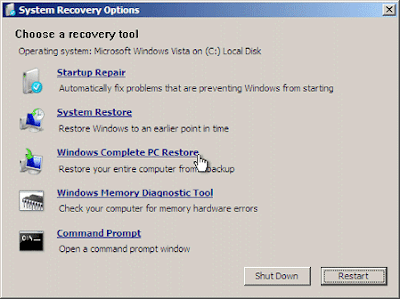
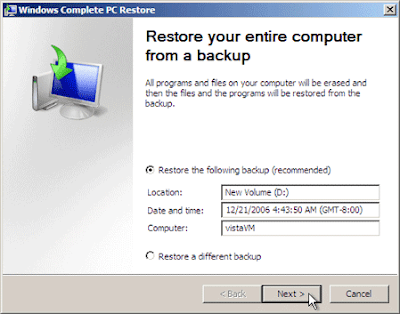
6. On the Restore Your Entire Computer From A Backup page of the Windows Complete PC Restore wizard, click Next to use the most recent backup.
 7. On the final page of the wizard, you can select the "Format and repartition disks" checkbox if you don’t want to save any of your data. I would definitely recommend this as it is the only way to be completely sure your computer is clean of any spyware, viruses, or worms. It will delete all the files on your disk before restoring the backup, however. If you don’t select the checkbox, it’ll leave your files on the disk and overwrite any files found in the backup. Therefore, any files you created after the backup was made will still be there if you do not format the disk. Click Finish to start the restore.
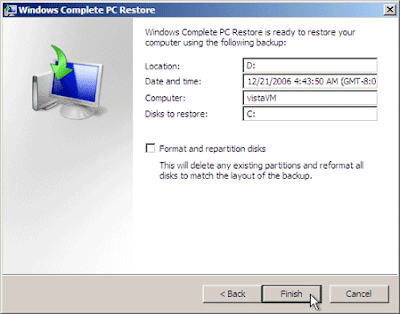 The restore will take a while. When it’s done, your computer will restart, back at the state it was in the last time you did a Complete PC backup. Now, you should recover any files you’ve backed up since your complete PC backup. Pretty simple, huh?
To create a complete PC backup, the instructions can be found here.
To restore a complete PC backup, follow these steps:
1. If your hard drive failed, replace it.
2. Insert your Windows Vista DVD, and boot your computer. When prompted, press any key to start from the CD/DVD.
3. Windows Vista setup starts. Select your regional settings, and click Repair Your Computer on the second page.
4. Follow the prompts that appear. Startup Repair will probably try to fix your startup problems without recovering from backup–if you don’t want it to bother, you can cancel the attempt.
5. When the System Recovery Options dialog appears, click Windows Complete PC Restore.
6. On the Restore Your Entire Computer From A Backup page of the Windows Complete PC Restore wizard, click Next to use the most recent backup.
7. On the final page of the wizard, you can select the "Format and repartition disks" checkbox if you don’t want to save any of your data. I would definitely recommend this as it is the only way to be completely sure your computer is clean of any spyware, viruses, or worms. It will delete all the files on your disk before restoring the backup, however. If you don’t select the checkbox, it’ll leave your files on the disk and overwrite any files found in the backup. Therefore, any files you created after the backup was made will still be there if you do not format the disk. Click Finish to start the restore.The restore will take a while. When it’s done, your computer will restart, back at the state it was in the last time you did a Complete PC backup. Now, you should recover any files you’ve backed up since your complete PC backup. Pretty simple, huh?
Windows Vista Application Compatibility Update
Microsoft has released a Vista update that can be downloaded here for x86 machines and here for x64 machines. These updates should address common application compatibility issues in Windows Vista.
This update improves support in Windows Vista for the following applications:
•IBM Rescue and Recovery with Rapid Restore 3.00
•Rosetta Stone 2.1.3
•MS Encarta Standard 2007
•Family Feud Online
•Crystal Player Professional 1.97
•Photoshop 7.0.1
•Total Commander 6.55
•Sony FeliCa Port (PaSoRi) 3.0.0.0
•Label Mighty 6
•AVG Anti-Spyware 7.5.0.47
•Lego Star Wars
•HD Tach 3
•Adobe Photoshop Elements Version 4.0
•Digital Zenkoku Map Townpage Database 7
•Auslogics Disk 1.0.3
•EasyRecovery Professional Version 6.04
•Microsoft Money 2005
•Microsoft Money 2006
•SmartInstall 2.16
•Adobe Create Suite CS2
•Jv16 Power Tools
•SG TCP Optimizer 2.0.3
•Cyber link Power Cinema 4.0
•Google desktop 4.2006.1008
•Roxio Easy Media Creator 7.5
•Premiere Elements 3
•Battlefield 2 Deluxe
•Opera 9.02
•Palm Desktop 6.0
•Digital Image Suite 2006
•Flight Simulator X
•SmartSuite Millennium Edition - Freelance Graphics 9.8
•LimeWire 4.12
•Point 5.3
•BitVise Tunnelier 4.20
•Java Control Panel
•ACDSee 8
•Azureus 1.0
•HD Tune 2.5.1
•BeatJam 2006 SE
•ICHITARO 2006
•Adobe Photoshop CS 8.0
•Arcsoft Photo Impression 5
•J2SE Runtime Environment 5.0 Update 9
•AOL 9.0 - x64
•DevStudio 9.0
•The Weather Channel Desktop 5.0.1
•Absolute Poker Version 5.7
•BitLord 1.1.5.6
•RealPlayer 6.0.12.1700
•Speedfan 4.31
•Delphi 7 Professional
•TweakNow PowerPack 2006
•Office 2003 Web Folders
•Outlook 2003
•Ulead DVD MovieFactory 5 Plus
•Virtual CD 8
•Fireworks MX2004 7.0.2.295
•Doranet Kids Nyugaku Jyunbi Taikenban
•Doranet Shogaku Ichinensei Taikenban
•Minna de TV Denwa Starter
•Power Utility - Remote administration 3.1.0.0
•MotionDV STUDIO 5.8J for FUJITSU
•OmniPass 1.0.0.1
•Minna de TV Phone Starter 2.1.0.1
•ColdFusion MX 7 Enterprise Edition
•Age of Empires III
•Age of Empires III : The WarChiefs Expansion Pack
•Zoo Tycoon 2
•Zoo Tycoon 2: African Adventure Expansion Pack
•Zoo Tycoon 2: Endangered Species Expansion Pack
•Zoo Tycoon 2: Marine Mania Expansion Pack
•Zoo Tycoon 2: Zookeeper Collection Expansion Pack
•Rise of Nations: Rise of Legends
•Fable: The Lost Chapters
•Dungeon Siege II
•Dungeon Siege: Legends of Aranna
After you install this update, a CD device or a DVD device may not work correctly. If you select the device in Device Manager and then view the properties for the device, you may receive the following error message:
The software for this device has been blocked from starting because it is known to have problems with Windows. Contact the hardware vendor for a new driver. (Code 48)
This problem occurs because a legacy application may install drivers that are incompatible with Windows Vista. For more information about how to work around this problem, click the following article number to view the article in the Microsoft Knowledge Base:
314060 CD-ROM access is missing and messages cite error code 31, code 32, code 19, code 39, or code 41 after you remove Easy CD Creator in Windows XP
This update improves support in Windows Vista for the following applications:
•IBM Rescue and Recovery with Rapid Restore 3.00
•Rosetta Stone 2.1.3
•MS Encarta Standard 2007
•Family Feud Online
•Crystal Player Professional 1.97
•Photoshop 7.0.1
•Total Commander 6.55
•Sony FeliCa Port (PaSoRi) 3.0.0.0
•Label Mighty 6
•AVG Anti-Spyware 7.5.0.47
•Lego Star Wars
•HD Tach 3
•Adobe Photoshop Elements Version 4.0
•Digital Zenkoku Map Townpage Database 7
•Auslogics Disk 1.0.3
•EasyRecovery Professional Version 6.04
•Microsoft Money 2005
•Microsoft Money 2006
•SmartInstall 2.16
•Adobe Create Suite CS2
•Jv16 Power Tools
•SG TCP Optimizer 2.0.3
•Cyber link Power Cinema 4.0
•Google desktop 4.2006.1008
•Roxio Easy Media Creator 7.5
•Premiere Elements 3
•Battlefield 2 Deluxe
•Opera 9.02
•Palm Desktop 6.0
•Digital Image Suite 2006
•Flight Simulator X
•SmartSuite Millennium Edition - Freelance Graphics 9.8
•LimeWire 4.12
•Point 5.3
•BitVise Tunnelier 4.20
•Java Control Panel
•ACDSee 8
•Azureus 1.0
•HD Tune 2.5.1
•BeatJam 2006 SE
•ICHITARO 2006
•Adobe Photoshop CS 8.0
•Arcsoft Photo Impression 5
•J2SE Runtime Environment 5.0 Update 9
•AOL 9.0 - x64
•DevStudio 9.0
•The Weather Channel Desktop 5.0.1
•Absolute Poker Version 5.7
•BitLord 1.1.5.6
•RealPlayer 6.0.12.1700
•Speedfan 4.31
•Delphi 7 Professional
•TweakNow PowerPack 2006
•Office 2003 Web Folders
•Outlook 2003
•Ulead DVD MovieFactory 5 Plus
•Virtual CD 8
•Fireworks MX2004 7.0.2.295
•Doranet Kids Nyugaku Jyunbi Taikenban
•Doranet Shogaku Ichinensei Taikenban
•Minna de TV Denwa Starter
•Power Utility - Remote administration 3.1.0.0
•MotionDV STUDIO 5.8J for FUJITSU
•OmniPass 1.0.0.1
•Minna de TV Phone Starter 2.1.0.1
•ColdFusion MX 7 Enterprise Edition
•Age of Empires III
•Age of Empires III : The WarChiefs Expansion Pack
•Zoo Tycoon 2
•Zoo Tycoon 2: African Adventure Expansion Pack
•Zoo Tycoon 2: Endangered Species Expansion Pack
•Zoo Tycoon 2: Marine Mania Expansion Pack
•Zoo Tycoon 2: Zookeeper Collection Expansion Pack
•Rise of Nations: Rise of Legends
•Fable: The Lost Chapters
•Dungeon Siege II
•Dungeon Siege: Legends of Aranna
After you install this update, a CD device or a DVD device may not work correctly. If you select the device in Device Manager and then view the properties for the device, you may receive the following error message:
The software for this device has been blocked from starting because it is known to have problems with Windows. Contact the hardware vendor for a new driver. (Code 48)
This problem occurs because a legacy application may install drivers that are incompatible with Windows Vista. For more information about how to work around this problem, click the following article number to view the article in the Microsoft Knowledge Base:
314060 CD-ROM access is missing and messages cite error code 31, code 32, code 19, code 39, or code 41 after you remove Easy CD Creator in Windows XP
Switch between Windows in 3D
 If you have a powerful computer and Windows Vista Aero (that 3D, glass-like window interface) is enabled, you can flip through your windows in 3D.
Instead of using Alt-Tab to flip between windows, hold down the Windows key (it’s near the Alt key) and press Tab repeatedly. Windows Vista will show your windows in 3D, even if they’re changing.
Speed up Your Windows Vista Computer with ReadyBoost
What's this ReadyBoost thing and how does it work?
Well, ReadyBoost is a feature where you connect a flash drive/SD card/etc into your computer and Vista will use the space on the flash drive to make the computer boot more quickly.
All you have to do is connect the drive and when AutoPlay comes up, just select the Speed Up My System option.

Well, ReadyBoost is a feature where you connect a flash drive/SD card/etc into your computer and Vista will use the space on the flash drive to make the computer boot more quickly.
All you have to do is connect the drive and when AutoPlay comes up, just select the Speed Up My System option.
You will be taken to the ReadyBoost tab of the flash drive's properties and all you do is make sure it has the radio button set to Use This Device. Couldn't be much easier.
Data Execution Prevention
 What is Data Execution Prevention?
Data Execution Prevention (DEP) is a security feature that can help prevent damage to your computer from viruses and other security threats. Harmful programs can try to attack Windows by attempting to run (also known as execute) code from system memory locations reserved for Windows and other authorized programs. These types of attacks can harm your programs and files.
DEP can help protect your computer by monitoring your programs to make sure that they use system memory safely. If DEP notices a program on your computer using memory incorrectly, it closes the program and notifies you.
How do you find it?
Go the the Control Panel and select Performance Information and Tools and select Adjust Visual Effects in the Tasks pane. Choose the Data Execution Prevention tab.
Video Tips and Tricks
Microsoft has released some useful basic videos for working with Microsoft Vista. Here they are:
Video: Windows Vista Tips & Tricks Presentation
Windows Vista Tips & Tricks Presentation (32:22 minutes)
Videos: Top Tips for Windows Vista
Introduction to Windows Vista (:33 minutes)
Discover the New Search Explorer (4:46 minutes)
Experience the Enhanced User Interface (1:39 minutes)
Introducing Internet Explorer® 7: Search (1:24 minutes)
Introducing Internet Explorer 7: Browsing Multiple Web Sites (2:09 minutes)
Introducing Internet Explorer 7: Perfect Printing (1:29 minutes)
Creating an XPS Document (2:05 minutes)
Windows Meeting Space (2:50 minutes)
Previous Versions (1:58 minutes)
PC Performance: Reliability Monitor (1:34 minutes)
Video: Windows Vista Tips & Tricks Presentation
Windows Vista Tips & Tricks Presentation (32:22 minutes)
Videos: Top Tips for Windows Vista
Introduction to Windows Vista (:33 minutes)
Discover the New Search Explorer (4:46 minutes)
Experience the Enhanced User Interface (1:39 minutes)
Introducing Internet Explorer® 7: Search (1:24 minutes)
Introducing Internet Explorer 7: Browsing Multiple Web Sites (2:09 minutes)
Introducing Internet Explorer 7: Perfect Printing (1:29 minutes)
Creating an XPS Document (2:05 minutes)
Windows Meeting Space (2:50 minutes)
Previous Versions (1:58 minutes)
PC Performance: Reliability Monitor (1:34 minutes)
Make User Account Control (UAC) More Tolerable
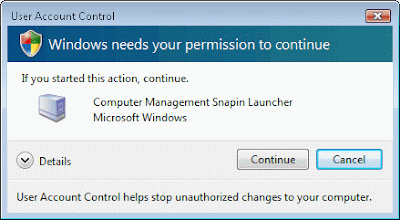 Personally, I hate the User Account Control (UAC), but that's just me. While I prefer to turn it off altogether, some may feel they want to keep it running but find that the flashing it does is pretty annoying. Unfortunately, there is not a "happy medium" where you can enable it for some applications and not others. Well, if nothing else, you can stop the flashing while not completely shutting down the UAC. Here is what you do:
1. Click Start, then in the Run section, type Secpol.msc, and press Enter. The secure desktop appears, select Continue. The Local Security Policy console displays.
2. Expand Local Policies and then click Security Options.
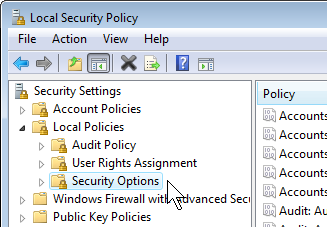 3. In the right pane, scroll to the bottom and double-click User Account Control: Switch To The Secure Desktop When Prompting For Elevation.
4. Select Disabled, and then select OK.
The change will take effect immediately. The UAC prompt will now appear like any other window.
Complex Searching in Windows Explorer
In Vista's Windows Explorer, have you noticed the search window in the upper right corner? Well, it's there and it is much more useful than just a place to type in a file name or wildcard character.
Microsoft Vista now gives you the option to search for files using various criteria using Advanced Query Search (AQS).
Okay, so here is the scenario. I have a lot of MP3's on my system but they are scattered all over the place. Sure, I could search on all MP3's by typing in *.mp3, but that might bring up just the filename. What if the artist's name was not listed in the filename, but was in the ID3 tag?
All you do is type in Artist:”Rolling Stones“ and all of your music files that are labeled as having the artist as the Rolling Stones will be displayed. These music-related searches can be performed the same way in Windows Media Player 11.
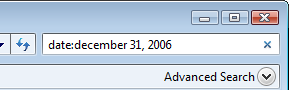
Maybe I want to find pictures taken on a specific date. I’ll type date:december31, 2006 and press Enter. Windows Vista immediately shows all my files modified on that date.
To filter the results to display only pictures, I simply select Picture on the Show Only toolbar.
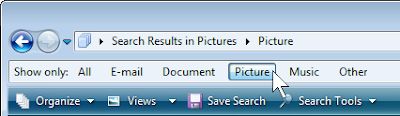 Viola! There are all of the pictures I took on that day. The following syntax will work as well:
date:today
date:yesterday
date:july
date:feb
date:sunday
genre:country. Find all music with a Genre defined as “Country”.
ContentProvider:iTunes. Finds all music where the content provider came from iTunes.
Much like Google, you can use a minus symbol to exclude something (or the keyword NOT) and you can us the keywords AND and OR. For example:
Microsoft Vista now gives you the option to search for files using various criteria using Advanced Query Search (AQS).
Okay, so here is the scenario. I have a lot of MP3's on my system but they are scattered all over the place. Sure, I could search on all MP3's by typing in *.mp3, but that might bring up just the filename. What if the artist's name was not listed in the filename, but was in the ID3 tag?
All you do is type in Artist:”Rolling Stones“ and all of your music files that are labeled as having the artist as the Rolling Stones will be displayed. These music-related searches can be performed the same way in Windows Media Player 11.
Maybe I want to find pictures taken on a specific date. I’ll type date:december31, 2006 and press Enter. Windows Vista immediately shows all my files modified on that date.
To filter the results to display only pictures, I simply select Picture on the Show Only toolbar.
Viola! There are all of the pictures I took on that day. The following syntax will work as well:date:today
date:yesterday
date:july
date:feb
date:sunday
Want to get even better search results? You can combine this search format with other criteria. What if I want to find all of the Word documents modified in January?
Simple, just type in date:jan *.doc* (I add the asterik at the end of doc in case it was an Office 2007 Word document saved as the new default .docx file format).
Here are some additional examples:
genre:country. Find all music with a Genre defined as “Country”.
ContentProvider:iTunes. Finds all music where the content provider came from iTunes.
Much like Google, you can use a minus symbol to exclude something (or the keyword NOT) and you can us the keywords AND and OR. For example:
genre:rock -"Bon Jovi". Find all rock songs, except a song named "Bon Jovi" or songs by an artist named (or composed by) "Bon Jovi".
date:today *.txt -cookies. Find all text files modified today except files named Cookies.
artist:U2 OR Metallica
Deleting or Changing Profiles
In Windows 2000/XP, to change, delete, or copy a user account, you simply right-clicked on My Computer, selected Properties, selected the Advanced tab, then User Profiles. Try that in Vista. You can't.
This is how you get to it now.
Open Control Panel, then User Accounts. Select Confugure Advanced User Profile Properties from the tasks column (Figure 1) and there is the familiar window to change local and roaming profiles.


Where's the Windows Vista Aero Theme?
Great question and here is the answer.
If any of the following statements is true, you will not be able to run the Aero (glass windows) theme:
•The copy of Windows Vista is not a validated genuine copy.
•The video card does not support the Windows Vista Aero theme.
•The video card supports the Windows Vista Aero theme. However, the video card is configured incorrectly. For example, the video card may be configured to use only 32 megabytes (MB) of VRAM.
•There are no Windows Display Driver Model (WDDM) drivers available for the video card. If the computer has more than one video card, this issue may occur if only one of the video cards does not have WDDM drivers.
•The computer has more than one video card. However, the video cards are not from the same manufacturer.
•The version of Windows Vista that you are using does not support the Windows Vista Aero theme.
To find out which of these problems is preventing you from running Aero (and see if anything else will be affected or prevented by upgrading your PC to Vista) download and run the Windows Vista Upgrade Advisor.
If any of the following statements is true, you will not be able to run the Aero (glass windows) theme:
•The copy of Windows Vista is not a validated genuine copy.
•The video card does not support the Windows Vista Aero theme.
•The video card supports the Windows Vista Aero theme. However, the video card is configured incorrectly. For example, the video card may be configured to use only 32 megabytes (MB) of VRAM.
•There are no Windows Display Driver Model (WDDM) drivers available for the video card. If the computer has more than one video card, this issue may occur if only one of the video cards does not have WDDM drivers.
•The computer has more than one video card. However, the video cards are not from the same manufacturer.
•The version of Windows Vista that you are using does not support the Windows Vista Aero theme.
To find out which of these problems is preventing you from running Aero (and see if anything else will be affected or prevented by upgrading your PC to Vista) download and run the Windows Vista Upgrade Advisor.
Minimum Hardware Requirements for Installation
The following list describes the recommended minimum hardware requirements for basic functionality of the different editions of Windows Vista. Actual hardware requirements will vary, depending on system configuration and on the programs and the features that you install. If you install Windows Vista over a network, additional hard disk space may be required.
Microsoft Vista Home Basic
•800-megahertz (MHz) 32-bit (x86) processor or 800-MHz 64-bit (x64) processor
•512 megabytes (MB) of system memory
•DirectX 9-class graphics card
•32 MB of graphics memory
•20-gigabyte (GB) hard disk that has 15 GB of free hard disk space
•Internal or external DVD drive
•Internet access capability
•Audio output capability
Microsoft Vista Home Premium, Microsoft Vista Business, Microsoft Vista Enterprise, and Microsoft Vista Ultimate
•1-gigahertz (GHz) 32-bit (x86) processor or 1-GHz 64-bit (x64) processor
•1 GB of system memory
•Windows Aero-capable graphics card
•128 MB of graphics memory
•40-GB hard disk that has 15 GB of free hard disk space (the 15GB of free space provides room for temporary file storage during the install or upgrade.)
•Internal or external DVD drive
•Internet access capability
•Audio output capability
Microsoft Vista Home Basic
•800-megahertz (MHz) 32-bit (x86) processor or 800-MHz 64-bit (x64) processor
•512 megabytes (MB) of system memory
•DirectX 9-class graphics card
•32 MB of graphics memory
•20-gigabyte (GB) hard disk that has 15 GB of free hard disk space
•Internal or external DVD drive
•Internet access capability
•Audio output capability
Microsoft Vista Home Premium, Microsoft Vista Business, Microsoft Vista Enterprise, and Microsoft Vista Ultimate
•1-gigahertz (GHz) 32-bit (x86) processor or 1-GHz 64-bit (x64) processor
•1 GB of system memory
•Windows Aero-capable graphics card
•128 MB of graphics memory
•40-GB hard disk that has 15 GB of free hard disk space (the 15GB of free space provides room for temporary file storage during the install or upgrade.)
•Internal or external DVD drive
•Internet access capability
•Audio output capability
Note- A Windows Aero-capable graphics card is a graphics card that meets the following requirements:
•Supports a Windows Display Driver Model (WDDM) driver
•Has a DirectX 9-class graphics processor unit (GPU) that supports Pixel Shader 2.0
•Supports 32 bits per pixel
•Passes the Windows Aero acceptance test in the Windows Driver Kit (WDK)
•Supports a Windows Display Driver Model (WDDM) driver
•Has a DirectX 9-class graphics processor unit (GPU) that supports Pixel Shader 2.0
•Supports 32 bits per pixel
•Passes the Windows Aero acceptance test in the Windows Driver Kit (WDK)
Microsoft Vista and Software Compatibility
As the launch for Microsoft Vista has finally arrived for home users, it seemed like a good idea to publish a list of programs tested on Windows Vista and report on what worked and what did not. Many of the programs are those listed in the top 20 of Download.com's most popular downloads so this should hopefully be useful to the greatest amount of people. Should you have any other software to include in this list, please add a comment and I will be happy to include it.
What worked:
Yahoo Messenger
SmartFTP
SnagIt 7
Office 2007 Professional
Adobe Illustrator 10
Microsoft Money 2007
ITunes
Macromedia Studio
BitComet 0.80
Limewire 4.12.6
AdAware SE 1.0.6.0
Spyware Doctor (slow to launch)
ICQ 5.1
IrfanView 3.99
BitTorrent 5.0.4
Adobe Photoshop 7
Morpheus 5.3.2.1062
BearFlix 1.1.6.1
WinZip 11
CamFrog Video Chat
Adobe Acrobat 7 (but Acrobat 8 would consistently not install due to "permission issues" that Adobe 7 did not have a problem with)
Software Components that worked:
Adobe Flash Player 9 ActiveX
J2SE Runtime Environment 5.0 Update 8
What eventually worked:
Firefox* (needed more than 1 install attempt)
What didn't work:
Nero 6 Burning ROM
Jury is still out:
Webroot Spy Sweeper (download version does not work on Vista but web site says they will release Vista-ready software when Vista releases to consumers in late January 2007)
Registry Mechanic (Installed and launched fine but didn't seem to recognize a lot of file types and values as being normal. Does it not recognize the changes in Vista?)
What worked:
Yahoo Messenger
SmartFTP
SnagIt 7
Office 2007 Professional
Adobe Illustrator 10
Microsoft Money 2007
ITunes
Macromedia Studio
BitComet 0.80
Limewire 4.12.6
AdAware SE 1.0.6.0
Spyware Doctor (slow to launch)
ICQ 5.1
IrfanView 3.99
BitTorrent 5.0.4
Adobe Photoshop 7
Morpheus 5.3.2.1062
BearFlix 1.1.6.1
WinZip 11
CamFrog Video Chat
Adobe Acrobat 7 (but Acrobat 8 would consistently not install due to "permission issues" that Adobe 7 did not have a problem with)
Software Components that worked:
Adobe Flash Player 9 ActiveX
J2SE Runtime Environment 5.0 Update 8
What eventually worked:
Firefox* (needed more than 1 install attempt)
What didn't work:
Nero 6 Burning ROM
Jury is still out:
Webroot Spy Sweeper (download version does not work on Vista but web site says they will release Vista-ready software when Vista releases to consumers in late January 2007)
Registry Mechanic (Installed and launched fine but didn't seem to recognize a lot of file types and values as being normal. Does it not recognize the changes in Vista?)
Windows Experience Index
What exactly is the Windows Experience Index? I saw this section displayed prominently in the System screen of the Control Panel and asked, what the blazes could this be (Figure 1)? My first thought was that maybe it was computing my level of experience based on my clicks and time spent (lost) on each page.
Well, according to the Help and Support, it is the following:
Each hardware component receives an individual subscore. Your computer's base score is determined by the lowest subscore. For example, if the lowest subscore of an individual hardware component is 2.6, then the base score is 2.6. The base score is not an average of the combined subscores." (Figure 2)
I saw this section displayed prominently in the System screen of the Control Panel and asked, what the blazes could this be (Figure 1)? My first thought was that maybe it was computing my level of experience based on my clicks and time spent (lost) on each page.Well, according to the Help and Support, it is the following:
"The Windows Experience Index measures the capability of your computer's hardware and software configuration and expresses this measurement as a number called a base score. A higher base score generally means that your computer will perform better and faster than a computer with a lower base score, especially when performing more advanced and resource-intensive tasks.
Each hardware component receives an individual subscore. Your computer's base score is determined by the lowest subscore. For example, if the lowest subscore of an individual hardware component is 2.6, then the base score is 2.6. The base score is not an average of the combined subscores." (Figure 2)
Now, read between the lines. Your PC (or a component thereof) is obsolete. Go out and upgrade if you want the FULL experience. Okay, if my 1.8Ghz Pentium M notebook with 1Gb of memory isn't good enough because the gaming graphics don't have enough memory to run the Windows Aero theme, eh, I can live with that. Can you?
Where are the Drop Down Menus in Windows Explorer?
 So, Windows Explorer is different. Okay, no biggie. But wait? Where are the fimiliar File, Edit, View, Favorites, Tools, and Help drop downs? GONE! Or so you might think. Actually, most of those items are now renamed as Organize, Views, Open and Print (Figure 1).
One new feature in Windows Explorer that is really nice is the ability to add a preview pane, much like in Microsoft Outlook 2003, and see what a file contains without actually opening it. You can find this setting by selecting Organize, then Layout, then Preview Pane.
Associating File Types
Remember in Windows XP or 2000 when you wanted to associate, say an mp3 file, to open with the same program every time? Sure, we all do. You would just select Tools and Folder Options from within Windows Explorer and make the change. 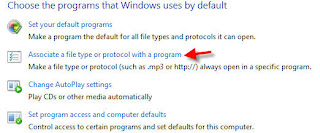
Well, with Vista, the Tools drop down is no longer there. So, where do we change that setting? Simple, just go to Default Programs in the Control Panel and select Associate a File Type or Protocol with a Program (Figure 1).
From Default Programs, you can also set AutoPlay settings and Program Access and Computer Defaults. Not really seeing a use for the last setting, but whatever.

Well, with Vista, the Tools drop down is no longer there. So, where do we change that setting? Simple, just go to Default Programs in the Control Panel and select Associate a File Type or Protocol with a Program (Figure 1).
From Default Programs, you can also set AutoPlay settings and Program Access and Computer Defaults. Not really seeing a use for the last setting, but whatever.
Joining a Domain
Joining a domain (or workgroup). For an IT professional, it's as easy as right-clicking My Computer, selecting Properties, go to the Computer Name tab and select Change. Try that in Vista.
Instead of getting Properties, you get the System screen from the Control Panel. What gives? No worries. Simply select the Change Settings midway down the page and the familiar System Properties opens at the Computer Name tab.
Instead of getting Properties, you get the System screen from the Control Panel. What gives? No worries. Simply select the Change Settings midway down the page and the familiar System Properties opens at the Computer Name tab.
Subscribe to:
Posts (Atom)
